Introduction to Image Processing with OpenCV
Learn the fundamentals of image processing using OpenCV and Python, including image reading, manipulation, and basic drawing operations
Note:
This tutorial covers basic image processing operations using OpenCV and Python. You'll learn how to read images, convert color spaces, flip images, and draw shapes on them.
Overview
Image processing is a fundamental concept in computer vision and artificial intelligence. In this tutorial, we'll explore basic image processing operations using OpenCV, a powerful library for computer vision tasks.
Prerequisites
Before starting, make sure you have the following libraries installed:
To follow along with this tutorial, you'll need to install three Python libraries:
- opencv-python: This is the Python binding for OpenCV, a powerful library for image processing and computer vision tasks.
- matplotlib: A popular library for plotting and visualizing data, which we'll use to display images.
- numpy: A fundamental package for numerical computations in Python, used for handling arrays and matrices, which are essential in image processing.
You can install all of them using the following command:
Basic Setup
Let's start by importing the necessary libraries:
import cv2
from matplotlib import pyplot as plt
import numpy as np
Step 1: Reading and Displaying Images
Reading an Image
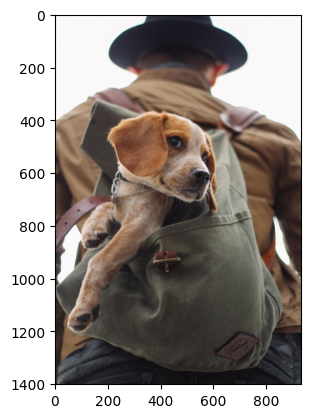
The first step in image processing is to read an image from your file system:
# Read the image
img = cv2.imread('Assets/dog_backpack.jpg')
Converting Color Space
OpenCV reads images in BGR (Blue, Green, Red) format by default, but matplotlib expects RGB format. We need to convert the color space:
# Convert the image from BGR to RGB
img_rgb = cv2.cvtColor(img, cv2.COLOR_BGR2RGB)
Displaying the Image
Now we can display the image using matplotlib:
# Display the image in RGB Mode
plt.imshow(img_rgb)
plt.show()
Step 2: Image Manipulation
Flipping Images
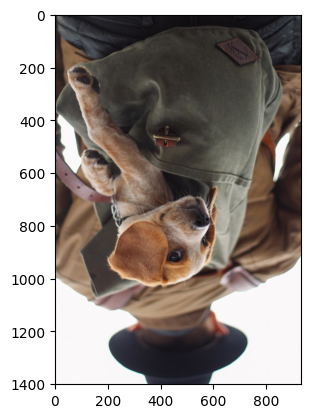
One common image manipulation is flipping. Let's flip the image vertically (upside down):
# Flip the image upside down (vertically) and display it
img_flip = cv2.flip(img_rgb, 0)
plt.imshow(img_flip)
plt.show()
Understanding the flip parameter:
0: Flip vertically (upside down)1: Flip horizontally (left to right)-1: Flip both vertically and horizontally
Step 3: Drawing on Images
Drawing Rectangles
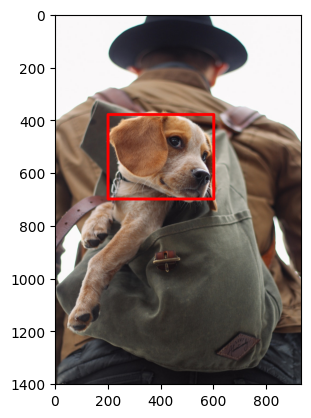
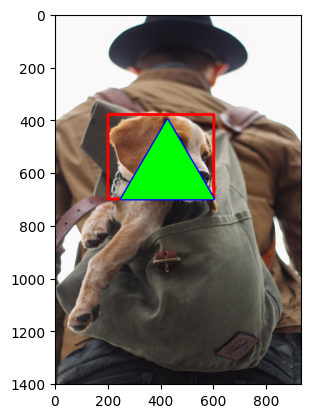
OpenCV provides functions to draw various shapes on images. Let's draw a red rectangle around the dog's face:
# Draw an empty RED rectangle around the dogs face and display the image
cv2.rectangle(img_rgb, pt1=(200, 380), pt2=(600, 700), color=(255, 0, 0), thickness=10)
plt.imshow(img_rgb)
plt.show()
Parameters explained:
pt1=(200, 380): Top-left corner coordinates (x, y)pt2=(600, 700): Bottom-right corner coordinates (x, y)color=(255, 0, 0): RGB color (Red in this case)thickness=10: Line thickness in pixels
Drawing Polygons
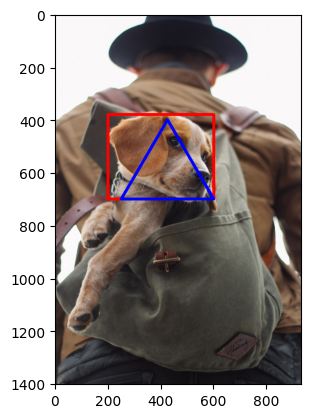
We can also draw more complex shapes like triangles:
# Draw a BLUE TRIANGLE in the middle of the image and display the image
pts = np.array([[250, 700], [425, 400], [600, 700]], dtype=np.int32)
cv2.polylines(img_rgb, [pts], isClosed=True, color=(0, 0, 255), thickness=10)
plt.imshow(img_rgb)
plt.show()
Understanding the parameters:
pts: Array of points defining the polygon verticesisClosed=True: Connects the last point to the first pointcolor=(0, 0, 255): Blue color in RGB formatthickness=10: Line thickness
Filling Polygons
We can fill polygons with color using cv2.fillPoly():
# Fill the triangle with GREEN color and display image
cv2.fillPoly(img_rgb, [pts], color=(0, 255, 0))
plt.imshow(img_rgb)
plt.show()
Key Concepts Explained
Color Spaces
BGR vs RGB:
- OpenCV uses BGR (Blue, Green, Red) color space
- Most other libraries (matplotlib, PIL) use RGB
- Always convert when switching between libraries
Coordinate System
Image Coordinates:
- Origin (0,0) is at the top-left corner
- X-axis increases from left to right
- Y-axis increases from top to bottom
Color Values
RGB Color Format:
- Each color channel ranges from 0 to 255
(255, 0, 0): Pure Red(0, 255, 0): Pure Green(0, 0, 255): Pure Blue(0, 0, 0): Black(255, 255, 255): White
Common Image Processing Operations
1. Image Reading and Display
# Read image
img = cv2.imread('image.jpg')
# Convert BGR to RGB
img_rgb = cv2.cvtColor(img, cv2.COLOR_BGR2RGB)
# Display
plt.imshow(img_rgb)
plt.show()
2. Image Flipping
# Vertical flip
img_flip_v = cv2.flip(img, 0)
# Horizontal flip
img_flip_h = cv2.flip(img, 1)
3. Drawing Shapes
# Rectangle
cv2.rectangle(img, (x1, y1), (x2, y2), (255, 0, 0), thickness)
# Circle
cv2.circle(img, (x, y), radius, (0, 255, 0), thickness)
# Line
cv2.line(img, (x1, y1), (x2, y2), (0, 0, 255), thickness)
Complete Code Example
Here's the complete code from this tutorial:
import cv2
from matplotlib import pyplot as plt
import numpy as np

# Read the image
img = cv2.imread('Assets/dog_backpack.jpg')

# Convert the image from BGR to RGB
img_rgb = cv2.cvtColor(img, cv2.COLOR_BGR2RGB)

# Display the image in RGB Mode
plt.imshow(img_rgb)
plt.show()

# Flip the image upside down (vertically) and display it
img_flip = cv2.flip(img_rgb, 0)
plt.imshow(img_flip)
plt.show()

# Draw an empty RED rectangle around the dogs face and display the image
cv2.rectangle(img_rgb, pt1=(200, 380), pt2=(600, 700), color=(255, 0, 0), thickness=10)
plt.imshow(img_rgb)
plt.show()

# Draw a BLUE TRIANGLE in the middle of the image and display the image
pts = np.array([[250, 700], [425, 400], [600, 700]], dtype=np.int32)
cv2.polylines(img_rgb, [pts], isClosed=True, color=(0, 0, 255), thickness=10)
plt.imshow(img_rgb)
plt.show()

# Fill the triangle with GREEN color and display image
cv2.fillPoly(img_rgb, [pts], color=(0, 255, 0))
plt.imshow(img_rgb)
plt.show()
Note:
This tutorial is part of the HW1 - Image Basic Assignment series. Make sure to save your output images with the names specified in the code comments for proper documentation.