Firebase User Login
Complete guide to implementing user login and authentication with Firebase in iOS apps

Note:
This tutorial covers implementing user login and authentication with Firebase in iOS apps. Make sure you have completed the Firebase integration and user registration setup from the previous tutorials.
Overview
Hello! In the third lesson of our series, we will implement user login functionality that allows registered users to access the main page after entering their correct email and password.
This process is quite similar to the registration process, so to make it easier for us, let's create an error message function.
Reference:
Step 1: Error Message Function
First, let's create an error message function to handle login failures.
func showAlert(titleInput: String, messageInput: String) {
    let alert = UIAlertController(title: titleInput, message: messageInput, preferredStyle: UIAlertController.Style.alert)
    let okButton = UIAlertAction(title: "OK", style: UIAlertAction.Style.default, handler: nil)
    alert.addAction(okButton)
    self.present(alert, animated: true, completion: nil)
}
We use UIAlertController to show a pop-up warning to the user. The action button will be "OK" and we add this action to the alert. Finally, we present the alert with animation.
Step 2: Firebase Authentication Implementation
When the login button is tapped, we'll request Firebase authentication. Since we'll be validating with email and password, after entering Auth.auth(), select the "email,password" method.
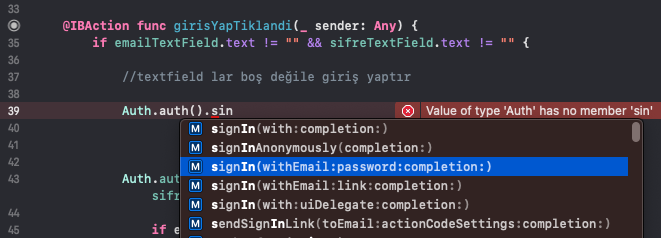
You can implement the login functionality with the following code block, which provides email and password using textfield.text commands. If login is successful, it will navigate to your desired view using performSegue. If login fails, it will call your error function to show a pop-up warning.
@IBAction func loginButtonTapped(_ sender: Any) {
    if emailTextField.text != "" && passwordTextField.text != "" {
        Auth.auth().signIn(withEmail: emailTextField.text!, password: passwordTextField.text!) { (authdata, error) in
            if error != nil {
                self.showAlert(titleInput: "Error", messageInput: error?.localizedDescription ?? "Error")
            } else {
                self.performSegue(withIdentifier: "toMainVC", sender: nil)
            }
        }
    } else {
        showAlert(titleInput: "Error", messageInput: "Please enter email and password")
    }
}
Complete ViewController Implementation
Here's the complete ViewController code for the login functionality:
import UIKit
import Firebase

class LoginViewController: UIViewController {

    @IBOutlet weak var emailTextField: UITextField!
    @IBOutlet weak var passwordTextField: UITextField!
    @IBOutlet weak var loginButton: UIButton!

    override func viewDidLoad() {
        super.viewDidLoad()
        setupUI()
    }

    func setupUI() {
        // Configure text fields
        emailTextField.placeholder = "Enter Email"
        passwordTextField.placeholder = "Enter Password"
        passwordTextField.isSecureTextEntry = true

        // Configure login button
        loginButton.setTitle("Login", for: .normal)
        loginButton.backgroundColor = .systemBlue
        loginButton.setTitleColor(.white, for: .normal)
        loginButton.layer.cornerRadius = 8
    }

    func showAlert(titleInput: String, messageInput: String) {
        let alert = UIAlertController(title: titleInput, message: messageInput, preferredStyle: UIAlertController.Style.alert)
        let okButton = UIAlertAction(title: "OK", style: UIAlertAction.Style.default, handler: nil)
        alert.addAction(okButton)
        self.present(alert, animated: true, completion: nil)
    }

    @IBAction func loginButtonTapped(_ sender: Any) {
        // Validate input fields
        guard let email = emailTextField.text, !email.isEmpty else {
            showAlert(titleInput: "Error", messageInput: "Please enter your email")
            return
        }

        guard let password = passwordTextField.text, !password.isEmpty else {
            showAlert(titleInput: "Error", messageInput: "Please enter your password")
            return
        }

        // Show loading indicator
        loginButton.isEnabled = false
        loginButton.setTitle("Logging in...", for: .normal)

        // Perform Firebase authentication
        Auth.auth().signIn(withEmail: email, password: password) { [weak self] (authResult, error) in
            DispatchQueue.main.async {
                self?.loginButton.isEnabled = true
                self?.loginButton.setTitle("Login", for: .normal)

                if let error = error {
                    self?.showAlert(titleInput: "Login Failed", messageInput: error.localizedDescription)
                } else {
                    // Login successful - navigate to main view
                    self?.performSegue(withIdentifier: "toMainVC", sender: nil)
                }
            }
        }
    }
}
Step 3: Storyboard Setup
Make sure your Storyboard includes:
- Email TextField - Connected to
emailTextFieldoutlet - Password TextField - Connected to
passwordTextFieldoutlet - Login Button - Connected to
loginButtonTappedaction - Navigation - Segue to main view with identifier "toMainVC"
Step 4: Enhanced Login Features
Password Visibility Toggle
Add a button to show/hide password:
@IBOutlet weak var passwordVisibilityButton: UIButton!

@IBAction func passwordVisibilityTapped(_ sender: Any) {
    passwordTextField.isSecureTextEntry.toggle()
    let imageName = passwordTextField.isSecureTextEntry ? "eye.slash" : "eye"
    passwordVisibilityButton.setImage(UIImage(systemName: imageName), for: .normal)
}
Remember Me Functionality
@IBOutlet weak var rememberMeSwitch: UISwitch!

private func saveLoginCredentials() {
    if rememberMeSwitch.isOn {
        UserDefaults.standard.set(emailTextField.text, forKey: "savedEmail")
        UserDefaults.standard.set(passwordTextField.text, forKey: "savedPassword")
    } else {
        UserDefaults.standard.removeObject(forKey: "savedEmail")
        UserDefaults.standard.removeObject(forKey: "savedPassword")
    }
}

private func loadSavedCredentials() {
    if let savedEmail = UserDefaults.standard.string(forKey: "savedEmail") {
        emailTextField.text = savedEmail
    }
    if let savedPassword = UserDefaults.standard.string(forKey: "savedPassword") {
        passwordTextField.text = savedPassword
    }
}
Step 5: Security Best Practices
Input Validation
private func validateEmail(_ email: String) -> Bool {
    let emailRegex = "[A-Z0-9a-z._%+-]+@[A-Za-z0-9.-]+\\.[A-Za-z]{2,64}"
    let emailPredicate = NSPredicate(format:"SELF MATCHES %@", emailRegex)
    return emailPredicate.evaluate(with: email)
}

private func validatePassword(_ password: String) -> Bool {
    return password.count >= 6
}
Rate Limiting
private var loginAttempts = 0
private let maxLoginAttempts = 5

private func checkLoginAttempts() -> Bool {
    if loginAttempts >= maxLoginAttempts {
        showAlert(titleInput: "Too Many Attempts", messageInput: "Please try again later")
        return false
    }
    return true
}
Step 6: Error Handling
Common Firebase Auth Errors
private func handleFirebaseError(_ error: Error) {
    let errorMessage: String

    switch error.localizedDescription {
    case let message where message.contains("no user record"):
        errorMessage = "No account found with this email address"
    case let message where message.contains("password is invalid"):
        errorMessage = "Incorrect password"
    case let message where message.contains("network"):
        errorMessage = "Network error. Please check your connection"
    default:
        errorMessage = error.localizedDescription
    }

    showAlert(titleInput: "Login Failed", messageInput: errorMessage)
}
Step 7: User Session Management
Check Current User
override func viewDidLoad() {
    super.viewDidLoad()

    // Check if user is already logged in
    if Auth.auth().currentUser != nil {
        performSegue(withIdentifier: "toMainVC", sender: nil)
    }
}
Logout Functionality
@IBAction func logoutButtonTapped(_ sender: Any) {
    do {
        try Auth.auth().signOut()
        performSegue(withIdentifier: "toLoginVC", sender: nil)
    } catch {
        showAlert(titleInput: "Error", messageInput: "Failed to logout")
    }
}
Troubleshooting
Common Issues:
- "No user record" - User doesn't exist, check email spelling
- "Password is invalid" - Incorrect password
- "Network error" - Check internet connection
- "Too many requests" - Wait before trying again
Debug Tips:
- Use Firebase console to monitor login attempts
- Check Xcode console for detailed error messages
- Verify Firebase configuration is correct
- Test with known valid credentials
Testing Your Implementation
- Create a test user using the registration functionality
- Test login with correct credentials
- Test error cases with wrong email/password
- Test network scenarios by disabling internet
- Test UI responsiveness with loading states
Note:
Firebase user login is straightforward once you understand the authentication flow. Always implement proper error handling and user feedback to provide a good user experience. Remember to test thoroughly before deploying to production.